
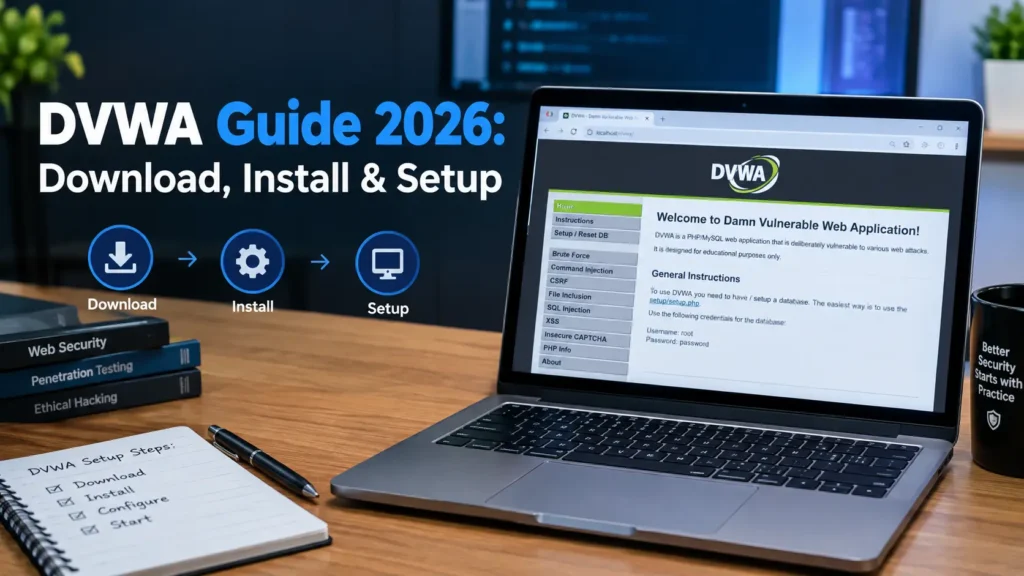
DVWA, short for Damn Vulnerable Web Application, is one of the best-known intentionally vulnerable web applications used for learning web application security.
It gives students, developers, cybersecurity learners, teachers, and security professionals a controlled environment where they can study common web vulnerabilities without testing against real websites.
DVWA is built mainly with PHP and MariaDB and includes multiple security levels. This makes it useful for understanding both vulnerable code and stronger security controls.
The official DVWA project describes its purpose as helping security professionals test their skills and tools legally, helping developers understand application security, and helping students and teachers learn web security in a controlled environment. OWASP’s Vulnerable Web Applications Directory also lists DVWA as an offline/container-based PHP and MariaDB training application.
This complete DVWA guide covers:
- What DVWA is
- What DVWA is used for
- How to download DVWA
- What DVWA Master means
- How to install DVWA with Docker
- How to install DVWA on Windows
- How to configure DVWA
- How to access DVWA on localhost
- DVWA default login credentials
- DVWA security levels
- DVWA vulnerabilities and labs
- How to use DVWA safely
- Common DVWA errors
- DVWA ISO and online versions
- Frequently asked questions
Important: DVWA is intentionally insecure. Use it only on systems you own or have permission to test. Do not install DVWA on a public Internet-facing server. The official project recommends an isolated environment and warns that publicly exposed installations can be compromised.
What Is DVWA?
DVWA stands for Damn Vulnerable Web Application.
It is an intentionally insecure web application designed specifically for web security education and authorized security testing.
Unlike a normal website, where developers try to remove vulnerabilities, DVWA deliberately contains security weaknesses.
These weaknesses allow learners to understand:
- How common web vulnerabilities happen
- What insecure application code looks like
- How HTTP requests and responses work
- How authentication and sessions work
- Why input validation matters
- How security controls affect attacks
- How vulnerable code differs from secure code
- How security testing tools interact with web applications
DVWA provides a simple interface and several difficulty levels so beginners can start with obvious weaknesses and gradually examine stronger security controls.
The project is listed in the OWASP Vulnerable Web Applications Directory, which describes it as a PHP/MariaDB application for controlled security training.
DVWA Quick Facts
| Feature | Details |
|---|---|
| Full name | Damn Vulnerable Web Application |
| Short name | DVWA |
| Main language | PHP |
| Main database | MariaDB/MySQL |
| Optional SQLi database | SQLite |
| Installation options | Docker, XAMPP, manual web-server setup |
| Current official source | digininja/DVWA |
| Docker default URL | http://localhost:4280 |
| Default username | admin |
| Default password | password |
| Security levels | Low, Medium, High, Impossible |
| Main purpose | Web application security education |
| Public hosting recommended? | No |
| Cost | Free/open source |
The current official documentation confirms the default login credentials and the four available security levels.
What Is DVWA Used For?
DVWA is mainly used for learning and practicing web application security in a controlled environment.
Some common uses include the following.
Learning Web Application Security
Beginners can use DVWA to understand how insecure web applications behave.
Instead of only reading theoretical descriptions, learners can interact with an actual application designed to demonstrate security weaknesses.
Secure Coding Education
DVWA is useful for developers because it allows them to compare weaker implementations with stronger ones.
This can help developers understand why practices such as input validation, parameterized database queries, output encoding, secure sessions, authorization checks, and file validation are important.
Security Tool Practice
DVWA can also be used as a local target when learning authorized security tools such as:
- Burp Suite
- OWASP ZAP
- Browser Developer Tools
- HTTP clients
- Web vulnerability scanners
Because DVWA is intentionally vulnerable, learners do not need to experiment against real websites.
Cybersecurity Classes and Labs
Teachers can use DVWA to demonstrate web vulnerabilities in classrooms or cybersecurity labs.
The official project specifically identifies students and teachers as part of its intended audience.
Is DVWA Free?
Yes.
DVWA is an open-source project and can be downloaded from its official GitHub repository.
For normal learning purposes, you do not need to buy DVWA.
You do, however, need a suitable local environment such as:
- Docker
- Docker Desktop
- XAMPP
- Apache + PHP + MariaDB
- A virtual machine
Is DVWA Safe?
DVWA is safe to use when it is correctly isolated, but DVWA itself is deliberately insecure.
That difference is important.
You should treat DVWA as a laboratory target rather than a normal application.
The official project warns users not to upload DVWA to public hosting or expose it directly to the Internet. It recommends using controlled environments such as virtual machines with NAT networking.
A good DVWA lab normally uses:
- Localhost
- Docker bound to the loopback interface
- A virtual machine
- NAT networking
- A dedicated test environment
Avoid exposing your DVWA installation to unknown Internet users.
DVWA Download: Where Should You Download It?
The safest source for DVWA is the official digininja/DVWA GitHub repository.
The official documentation states that although different DVWA versions and copies exist around the Internet, the supported version is the latest source from the official repository.
Official DVWA GitHub repository
You can obtain DVWA in two main ways.
Option 1: Download DVWA as a ZIP File
This is often easiest for beginners.
Open the official repository and use GitHub’s download option to download the source as a ZIP archive.
After downloading it:
- Extract the ZIP file.
- Place it in your preferred lab directory.
- Follow either the Docker or manual installation instructions below.
Option 2: Clone DVWA With Git
If you already use Git, clone the official digininja/DVWA repository to your computer.
After cloning, enter the DVWA directory and continue with your chosen installation method.
Using Git also makes it easier to retrieve future changes from the official project.
What Is DVWA Master?
You may see names such as:
- DVWA master
- DVWA-master
- DVWA-master.zip
- DVWA GitHub master
This does not mean that “DVWA Master” is a special premium or advanced edition.
The word master refers to the main development branch used by the official DVWA GitHub repository.
When GitHub creates a ZIP archive from that branch, the extracted folder may therefore appear with a name such as:
DVWA-master
This is also why some older tutorials use URLs such as:
http://localhost/DVWA-master/
while others use:
http://localhost/DVWA/
The correct URL depends on the directory name and installation method being used.
The official project currently directs users to the latest source from its repository rather than treating old numbered copies or forks as the preferred version.
DVWA System Requirements
Requirements depend on your installation method.
Docker Installation
You normally need:
- Docker
- Docker Compose
Docker Desktop generally includes both components.
Manual Installation
For a traditional installation, DVWA needs a web stack that includes components such as:
- Apache
- PHP
- MariaDB or compatible MySQL setup
- PHP MySQL extension
- PHP GD extension
For Debian-based Linux systems, the official documentation currently lists packages including Apache, MariaDB server/client, PHP, php-mysqli, php-gd, and the Apache PHP module.
How to Install DVWA Using Docker
For most users in 2026, Docker is one of the cleanest ways to run DVWA.
The official repository includes a Docker Compose configuration.
Step 1: Install Docker
Install Docker Desktop on Windows or macOS, or a supported Docker installation on Linux.
Confirm that both Docker and Docker Compose work.
You can check with:
docker version
docker compose version
Step 2: Download DVWA
Download or clone the official DVWA repository.
Extract it if you downloaded a ZIP file.
Step 3: Open a Terminal Inside the DVWA Folder
Change into the DVWA directory:
cd DVWA
Step 4: Start DVWA
Run:
docker compose up -d
The -d option runs the containers in the background.
According to the current official installation instructions, DVWA should then be available at:
http://localhost:4280
The official Compose configuration maps the application to 127.0.0.1:4280, keeping it bound to the local machine by default.
Why Does DVWA Use Port 4280?
Traditional web servers commonly use port 80.
The current DVWA Docker configuration instead uses port 4280 on the host.
The project explains that this helps avoid conflicts with another service already using port 80 and avoids problems related to privileged ports with some container configurations.
The mapping currently looks conceptually like:
127.0.0.1:4280 → container port 80
This means your browser connects to port 4280, while the web server inside the container still receives traffic on port 80.
How to Change the DVWA Docker Port
If port 4280 is already being used, you can modify the port mapping in compose.yml.
For example, you could use another local port such as:
8806
After changing the mapping and restarting the containers, DVWA would be available through:
http://localhost:8806
The official project documents this customization and recommends keeping the application bound to the local loopback interface whenever possible.
How to Stop DVWA Docker
To stop the containers:
docker compose stop
To stop and remove the running containers:
docker compose down
You can start them again later with:
docker compose up -d
How to View DVWA Docker Logs
When DVWA does not start correctly, logs are one of the first things you should check.
Run:
docker compose logs
The official documentation recommends this method for viewing merged container logs.
How to Install DVWA on Windows
Windows users have two practical choices:
- Docker Desktop
- XAMPP
Docker is usually easier to isolate.
XAMPP is useful if you want to understand how Apache, PHP, the database, and application files work together.
How to Install DVWA on Windows With XAMPP
Step 1: Install XAMPP
Install XAMPP on your Windows computer.
XAMPP provides the main components required for a traditional DVWA installation, including a web server, PHP, and a database environment.
The official DVWA project describes XAMPP as an easy installation option for users who do not already have a web server configured.
Step 2: Download DVWA
Download the current source from the official DVWA GitHub repository.
Extract the files.
Step 3: Copy DVWA Into the XAMPP Web Directory
Locate your XAMPP htdocs directory.
Copy the DVWA folder into it.
For example, your structure may look similar to:
xampp/
└── htdocs/
    └── DVWA/
Step 4: Rename or Copy the DVWA Configuration File
Inside the DVWA directory, find:
config/config.inc.php.dist
DVWA expects an active configuration file called:
config/config.inc.php
Create the active configuration file from the distributed example.
Windows sometimes hides known file extensions, which can cause users to accidentally create the wrong filename. The official documentation specifically warns Windows users about this issue.
Step 5: Start Apache and the Database
Open the XAMPP Control Panel.
Start:
- Apache
- MySQL/MariaDB
Both services need to be running for a traditional DVWA installation.
Step 6: Configure the Database
DVWA needs its own database.
The current configuration template uses settings based around:
Database: dvwa
Database user: dvwa
Database host: 127.0.0.1
Database port: 3306
The official project recommends using a dedicated DVWA database account instead of relying on a database root account, particularly with MariaDB.
Make sure the values in your database server and config.inc.php agree with each other.
Step 7: Open DVWA in Your Browser
If the folder is named DVWA, try:
http://localhost/DVWA/
If you renamed it to dvwa, your path may instead be:
http://localhost/dvwa/
On Linux, remember that directory names may be case-sensitive.
DVWA and dvwa can therefore be treated as different paths.
The official troubleshooting documentation specifically identifies incorrect folder paths and letter case as common reasons for receiving a 404 or Apache default page.
localhost/DVWA vs localhost:4280
This confuses many beginners.
Both addresses can be correct, but they belong to different installation styles.
Docker
The current official Docker configuration normally uses:
http://localhost:4280
XAMPP or Manual Apache Installation
A traditional installation may use:
http://localhost/DVWA/
or:
http://localhost/dvwa/
The exact URL depends on the directory name and server configuration.
Simple rule
If you installed DVWA using the official Docker Compose setup, start with:
localhost:4280
If you placed DVWA inside a traditional web-server document root such as XAMPP htdocs, the folder name normally becomes part of the URL.
How to Configure DVWA
DVWA’s main configuration file is:
config/config.inc.php
The distributed template is:
config/config.inc.php.dist
On Linux, the official documentation shows copying the distributed file into place before editing it.
Important configuration areas include:
- Database server
- Database name
- Database username
- Database password
- Database port
- Default security level
- reCAPTCHA keys
- Authentication behavior
- SQL injection database backend
DVWA Environment Variables
DVWA can also read many settings from environment variables.
This is especially useful with:
- Docker
- Docker Compose
- Kubernetes
- Automated lab environments
For example, the default security level can be controlled using the corresponding environment setting rather than manually modifying PHP source code.
The official project specifically documents environment-variable configuration for containerized deployments.
What Is the Default DVWA Security Level?
The current distributed DVWA configuration sets the default security level to:
Impossible
The supported values are:
- Low
- Medium
- High
- Impossible
You can change the default in the configuration or through the relevant environment variable.
This is worth noting because many older DVWA tutorials assume that a fresh installation starts at Low.
DVWA Default Username and Password
The current official documentation lists:
Username: admin
Password: password
These credentials are intentionally simple because DVWA is a training application.
Do not reuse passwords from real accounts inside a security lab.
DVWA Security Levels Explained
One of DVWA’s most useful features is its adjustable security level.
The same general vulnerability can behave differently depending on the selected level.
DVWA Low Security
Low is normally the easiest level.
It is designed to make insecure behavior easier to identify.
This is often a good starting point for beginners because security controls are minimal.
Use Low to understand the basic vulnerability before moving to stronger levels.
DVWA Medium Security
Medium adds some defensive controls.
These controls may reduce simple attacks without completely fixing the underlying problem.
This level is useful because it demonstrates an important security lesson:
Adding a filter does not automatically make an application secure.
DVWA High Security
High introduces stronger restrictions and makes the weakness harder to interact with.
Learners may need to think more carefully about:
- Input handling
- Application logic
- Session state
- Browser behavior
- Validation rules
DVWA Impossible Security
Impossible represents the secure or much more strongly protected implementation.
It is especially useful for developers because you can compare the insecure implementation with defensive coding techniques.
Instead of thinking only about how a vulnerability works, study why the secure version behaves differently.
How to Change the DVWA Security Level
After logging in:
- Open the DVWA Security section.
- Choose the level you want.
- Save or submit the setting.
- Return to the lab you want to study.
A useful learning order is:
Low
↓
Medium
↓
High
↓
Impossible
After each level, ask:
- What changed?
- What protection was added?
- Is the protection complete?
- What does the secure version do differently?
That comparison is often more valuable than simply completing the exercise.
What Vulnerabilities Can You Learn With DVWA?
DVWA includes a range of web security labs.
Depending on the current version, areas include topics such as:
- Brute-force authentication
- Command injection
- Cross-Site Request Forgery
- File inclusion
- File upload security
- Insecure CAPTCHA
- SQL injection
- Blind SQL injection
- Weak session identifiers
- Reflected Cross-Site Scripting
- Stored Cross-Site Scripting
- DOM-based XSS
- Content Security Policy concepts
- JavaScript-related security
- Redirect-related security
- Authorization and access-control concepts
- Cryptography-related exercises
- API security
The exact available modules can evolve as the project is maintained, which is another reason to prefer the current official source over old third-party copies.
How to Use DVWA as a Beginner
A structured process makes DVWA easier to understand.
Step 1: Start With One Vulnerability
Do not try to complete every lab on your first day.
Choose one topic.
For example:
- SQL injection
- XSS
- CSRF
- File upload security
Step 2: Read the Page Carefully
Understand what the application expects from you.
Identify:
- Form fields
- Buttons
- URLs
- Cookies
- Parameters
- User input
Step 3: Start at Low Security
Study the application’s behavior.
Do not simply copy commands or payloads from random tutorials.
Try to understand why the application accepts or processes input in an unsafe way.
Step 4: Look at the Source Code
DVWA provides vulnerable code specifically for educational study.
Ask:
- Where does user-controlled data enter?
- Is it validated?
- Is it encoded?
- Is it sent into a database?
- Is it passed to the operating system?
- Is authorization checked?
- What changes at a higher security level?
Step 5: Move to Medium and High
Compare the defensive controls.
Think about whether those controls address the root cause or only make exploitation more difficult.
Step 6: Study Impossible
Finally, inspect the secure implementation.
For developers, this may be the most valuable part of DVWA.
The objective is not simply to “beat the challenge.”
The better question is:
How should a real application prevent this problem?
DVWA API Lab
Modern DVWA includes an API-related lab that requires additional components in a manual installation.
According to the official documentation, the API lab requires:
- Apache
mod_rewrite - Composer
- The required vendor dependencies
On Linux, the Apache rewrite module can be enabled before restarting Apache.
Composer is then used from the API vulnerability directory to install the required dependencies.
This is an important difference between current DVWA and many older tutorials that only discuss the classic PHP labs.
DVWA and SQLite
DVWA normally uses MariaDB/MySQL for its application database.
However, current DVWA also supports an optional SQLite backend specifically for the SQL Injection and Blind SQL Injection labs.
The official project notes that these challenges remain the same while running against SQLite instead.
This can be useful for learners interested in seeing how database technology affects application behavior.
DVWA reCAPTCHA Configuration
The Insecure CAPTCHA lab needs reCAPTCHA configuration.
If you are not using that specific lab, you can normally ignore the reCAPTCHA settings.
The configuration file provides fields for the required public and private keys.
Common DVWA Problems and Fixes
1. DVWA Shows a 404 Error
Check:
- Where you placed the DVWA directory
- Your Apache document root
- The folder name
- Capitalization of the folder name
- Whether you are using Docker or XAMPP
If the folder is:
DVWA
then:
http://localhost/dvwa
may fail on a case-sensitive environment.
Try the path that exactly matches your directory.
The official documentation identifies this as a common setup mistake.
2. Apache Default Page Appears Instead of DVWA
This usually means Apache is running, but you opened the document root instead of the DVWA directory.
For example, your files might be inside:
/var/www/html/DVWA/
while you opened only:
http://localhost/
Try the DVWA directory path instead.
3. DVWA Shows a Blank White Screen
A blank page can mean PHP encountered an error but error display is disabled.
The official troubleshooting guide recommends checking PHP error-display settings and then restarting Apache so the underlying error becomes visible.
Also check:
- Database configuration
- PHP extensions
- Apache logs
- File permissions
4. Database Error #1045
An error similar to:
Access denied for user
usually means the username or password in DVWA’s configuration does not match the database credentials.
The official project identifies MariaDB/MySQL error 1045 as an authentication problem.
Check:
- Database username
- Database password
config.inc.php- Environment variables
5. Database Error #1044
Error 1044 generally means the database user exists and the credentials are accepted, but that user does not have permission to access the requested database.
Check:
- Database name
- User privileges
- DVWA configuration
6. Database Error #2002
Error 2002 can indicate that the database server is not running.
The official troubleshooting documentation distinguishes this from a username/password problem.
On Windows, check the XAMPP Control Panel.
On Linux, check whether MariaDB/MySQL is running.
7. Connection Refused
A database connection-refused error usually means:
- The database server is stopped
- DVWA is using the wrong database host
- The IP address is incorrect
- A container service is unavailable
The current troubleshooting documentation recommends checking the configured database server and confirming that the database service is active.
8. Docker DVWA Is Not Opening
Check:
docker compose ps
Then inspect the logs:
docker compose logs
Also confirm that you are visiting:
http://localhost:4280
rather than automatically assuming the URL is /dvwa.
MariaDB vs MySQL for DVWA
DVWA can work with MySQL-compatible databases, but the maintained documentation recommends MariaDB for a manual installation because it works more smoothly with the application’s expected configuration.
The project notes that recent MySQL authentication behavior can require additional configuration, while MariaDB is the recommended straightforward option.
For a new manual DVWA lab, MariaDB is therefore usually the simpler choice.
DVWA Docker vs XAMPP
Which installation method should you choose?
| Feature | Docker | XAMPP |
|---|---|---|
| Setup difficulty | Easy | Moderate |
| Isolation | Better | Lower |
| Manual configuration | Less | More |
| Good for beginners | Yes | Yes |
| Learn Apache/PHP setup | Less | More |
| Easy reset | Yes | Moderate |
| Default URL | localhost:4280 | localhost/DVWA |
| Recommended for simple local lab | Excellent | Good |
Choose Docker if:
- You want the fastest clean setup.
- You want better isolation.
- You already use Docker.
- You want an environment that is easy to reset.
Choose XAMPP if:
- You want to learn how Apache and PHP work.
- You want to edit configuration manually.
- You prefer a traditional Windows web stack.
DVWA Online Free: Can You Use DVWA Online?
DVWA itself is free, but running random publicly exposed copies of DVWA is not the recommended approach.
Remember:
DVWA is intentionally vulnerable.
The official project explicitly warns users not to deploy it to an Internet-facing server.
A safer choice is:
- Docker on localhost
- XAMPP on localhost
- A local virtual machine
- A private isolated training environment
Other browser-based cybersecurity learning platforms exist, but they should not automatically be treated as official DVWA installations.
What Is the DVWA ISO?
You may find references online to:
- DVWA ISO
- DVWA LiveCD
- DVWA VM image
- DVWA 1.0.7 ISO
These usually refer to older packaged lab environments rather than the current preferred distribution method.
For a modern DVWA installation, use the current official source and run it with Docker or a properly configured local web stack.
An old ISO can still be interesting for historical or legacy training, but it should not be confused with the maintained current DVWA source.
DVWA vs OWASP Juice Shop
DVWA and OWASP Juice Shop are both intentionally vulnerable applications, but they have different learning styles.
DVWA is especially useful for:
- Simple individual vulnerability labs
- PHP security concepts
- Comparing security levels
- Studying vulnerable source code
- Beginner web security education
OWASP Juice Shop represents a more modern application style and offers a wider challenge-based experience.
You do not necessarily have to choose only one.
A useful learning path is:
DVWA fundamentals
↓
More complex vulnerable applications
↓
Modern application/API security labs
DVWA Advantages
DVWA remains useful because it offers:
Simple Interface
Beginners can focus on the security concept rather than a complicated application.
Multiple Security Levels
The Low, Medium, High, and Impossible levels allow useful comparison.
Source-Code Access
Developers can see how insecure implementation choices create vulnerabilities.
Easy Local Deployment
Docker makes modern installation relatively simple.
Large Learning Community
Because DVWA has existed for years, many educational resources discuss it.
Broad Web-Security Coverage
It demonstrates several major categories of web application weakness.
DVWA Limitations
DVWA is useful, but it should not be your only security training environment.
It Is Intentionally Artificial
Real-world applications are usually much larger and more complicated.
Some Labs Focus on Classic Vulnerabilities
Modern applications also involve:
- REST APIs
- GraphQL
- Cloud architecture
- OAuth
- Single sign-on
- Microservices
- JavaScript frameworks
- Complex authorization systems
Knowing a DVWA Challenge Does Not Equal Real-World Expertise
Use DVWA to build fundamentals.
Then expand into:
- Secure coding
- Code review
- Modern web applications
- API security
- OWASP guidance
- Browser security
- Authentication and authorization design
Best Way to Learn DVWA
A good DVWA learning process looks like this:
1. Understand HTTP
Learn requests, responses, headers, cookies, and parameters.
2. Learn Basic HTML and JavaScript
Understand forms and browser behavior.
3. Learn Basic PHP
DVWA becomes much more useful when you can read the application’s source code.
4. Learn Basic SQL
This will help with database-related labs.
5. Start DVWA at Low
Understand the basic weakness.
6. Increase the Security Level
Study what changes.
7. Compare With Impossible
Understand the proper defense.
8. Write Notes
For every lab, record:
- Vulnerability name
- Root cause
- Security impact
- Vulnerable implementation
- Defensive technique
- Secure implementation
This creates a much stronger security foundation than memorizing test strings.
DVWA Best Practices
When using DVWA, follow these basic rules:
- Keep DVWA local or isolated.
- Never expose it directly to the public Internet.
- Use only systems you own or are authorized to test.
- Prefer the maintained official repository.
- Be careful with outdated tutorials and old forks.
- Study the secure implementation, not only the vulnerable one.
- Keep your lab separate from important production data.
- Take snapshots or backups before major changes.
- Review logs when troubleshooting.
- Update your learning beyond DVWA once you understand the fundamentals.
Frequently Asked Questions About DVWA
What does DVWA stand for?
DVWA stands for Damn Vulnerable Web Application.
What is DVWA?
DVWA is an intentionally vulnerable PHP/MariaDB web application designed for controlled web-security education and authorized security testing.
Is DVWA free?
Yes. DVWA is available as an open-source project from its official GitHub repository.
Where should I download DVWA?
Use the maintained digininja/DVWA GitHub repository. The official project states that the latest source from that repository is the supported version.
What is DVWA Master?
“DVWA Master” usually refers to the repository’s master branch or a ZIP/folder downloaded from that branch. It is not a separate premium DVWA edition.
What is the DVWA Docker URL?
The current official Docker Compose setup makes DVWA available at:
http://localhost:4280
Why doesn’t localhost/DVWA work?
Possible reasons include:
- You installed DVWA with Docker and should use port 4280.
- Your folder has a different name.
- Your directory capitalization is different.
- DVWA is outside the web-server document root.
- Apache is not running.
What are the default DVWA credentials?
The official documentation currently lists:
Username: admin
Password: password
What are the DVWA security levels?
The current supported levels are:
- Low
- Medium
- High
- Impossible
What is the default DVWA security level?
The current distributed configuration defaults new sessions to Impossible, although administrators can change this setting.
Does DVWA use MySQL or MariaDB?
DVWA uses a MySQL-compatible database setup, and the maintained documentation currently recommends MariaDB for straightforward manual installation.
Does DVWA support SQLite?
Yes, current DVWA can use SQLite specifically for its SQL Injection and Blind SQL Injection labs.
Can I install DVWA on Windows 11?
Yes.
You can use:
- Docker Desktop
- XAMPP
Both approaches are suitable for a local learning environment.
Can I install DVWA on Kali Linux?
Yes.
DVWA can run on Debian-based Linux environments such as Kali and Ubuntu when the necessary Apache, PHP, and database dependencies are installed.
Is DVWA legal?
DVWA is designed for legitimate security education and testing. Use it only in environments you own or have explicit authorization to test.
Do not use techniques learned in DVWA against systems without permission.
Should DVWA be hosted publicly?
No.
The official project explicitly warns against deploying DVWA to Internet-facing servers.
Is DVWA good for beginners?
Yes.
Its simple interface, individual labs, readable source code, and multiple security levels make DVWA particularly useful for learning basic web-security concepts.
Final Thoughts
DVWA remains a useful web-security learning environment because it turns abstract security concepts into practical examples.
For most users in 2026, the simplest path is to download the latest source from the official digininja/DVWA repository and run it locally using Docker Compose.
The current Docker setup provides DVWA at:
http://localhost:4280
Windows users who want a more traditional PHP environment can also use XAMPP, while Linux users can configure Apache, PHP, and MariaDB manually.
The most important part of learning DVWA is not simply finding a weakness.
Study the complete process:
What causes the vulnerability? How does the application’s behavior change at different security levels? And how does the secure implementation prevent the problem?
If you approach DVWA that way, it becomes more than a vulnerable website. It becomes a practical environment for understanding how web applications should—and should not—be built.
And always keep the lab isolated: DVWA is deliberately insecure and should never be treated like a production web application.