
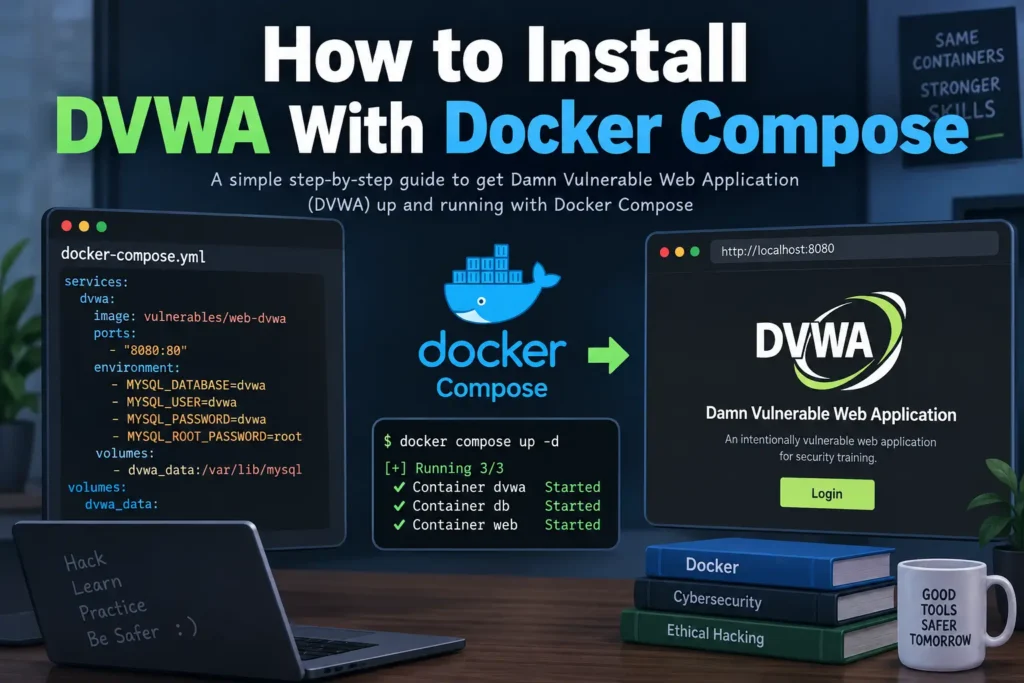
Installing DVWA with Docker Compose is one of the easiest ways to create a local Damn Vulnerable Web Application lab.
Instead of manually installing Apache, PHP, MariaDB, and other dependencies, Docker runs DVWA and its database inside separate containers.
The official DVWA project includes its own compose.yml file, so you do not need to create a Docker Compose configuration from scratch.
The basic installation is simple:
git clone https://github.com/digininja/DVWA.git
cd DVWA
docker compose up -d
After the containers start, DVWA is normally available at:
http://localhost:4280
The official project currently uses the prebuilt ghcr.io/digininja/dvwa:latest application image together with a MariaDB 10 database container.
This guide explains the complete process in easy steps.
Important: DVWA is intentionally vulnerable. Keep it on localhost or another isolated environment. Do not expose it directly to the public Internet.
DVWA Docker Compose Installation: Quick Steps
If you only need the basic process, follow these steps:
- Install Docker.
- Confirm Docker and Docker Compose are working.
- Download or clone the official DVWA repository.
- Open a terminal inside the DVWA folder.
- Run
docker compose up -d. - Wait for the DVWA and database containers to start.
- Open
http://localhost:4280. - Complete the DVWA database setup if prompted.
- Log in with the default DVWA credentials.
The official DVWA documentation currently recommends exactly this Docker Compose workflow.
What Is DVWA?
DVWA stands for Damn Vulnerable Web Application.
It is an intentionally insecure web application designed for learning web application security in a controlled environment.
DVWA can help students, developers, teachers, and cybersecurity learners understand topics such as:
- SQL injection
- Cross-Site Scripting
- Cross-Site Request Forgery
- Command injection
- File inclusion
- File upload security
- Weak session management
- Authentication weaknesses
- Access control
- Secure coding practices
DVWA is deliberately vulnerable, so it should be treated as a training lab, not as a normal production website.
What Is Docker?
Docker is a container platform that allows applications and their dependencies to run inside isolated environments called containers.
Instead of manually installing everything DVWA needs on your computer, Docker can provide the required environment for you.
For DVWA, Docker helps run components such as:
- Web server
- PHP application
- DVWA source code
- MariaDB database
- Supporting dependencies
This makes installation easier and more reproducible.
What Is Docker Compose?
Docker Compose is used to define and run applications that require multiple containers.
DVWA needs more than one service.
The current official Compose configuration includes:
- A DVWA application container
- A MariaDB database container
Docker Compose starts both services and connects them through a private Docker network.
Instead of manually creating each container, you can start the complete DVWA environment with one command:
docker compose up -d
Why Install DVWA With Docker Compose?
Docker Compose is useful because it removes much of the manual configuration required by traditional installations.
Advantages of Using Docker Compose
Easy Installation
You do not have to manually configure Apache, PHP, and MariaDB.
Better Isolation
DVWA runs inside containers instead of directly inside your main operating system’s web-server environment.
Easy to Stop
You can stop the complete lab with:
docker compose stop
Easy to Remove
You can remove the containers with:
docker compose down
Reproducible Setup
The provided compose.yml defines the application’s services, ports, database configuration, volumes, and network.
Works Across Operating Systems
Docker Compose can be used on:
- Windows
- Linux
- macOS
DVWA Docker Compose Requirements
Before installing DVWA, you need:
- Docker
- Docker Compose
- Internet access for the initial image download
- The official DVWA repository
- A web browser
- Terminal, PowerShell, Command Prompt, or another shell
If you use Docker Desktop, Docker Compose is normally included.
The official DVWA documentation recommends checking both components before continuing.
Step 1: Install Docker
The exact installation depends on your operating system.
Windows
Install Docker Desktop.
After installation, start Docker Desktop and wait until the Docker engine is running.
macOS
Docker Desktop can also provide Docker and Compose on macOS.
Linux
You can install Docker Engine and the Docker Compose plugin using the official Docker instructions for your Linux distribution.
The DVWA project recommends using a current Docker release for the best support.
Step 2: Check Docker Installation
Open your terminal and run:
docker version
You should see information about the Docker client and server.
Next, check Docker Compose:
docker compose version
You should see a Docker Compose version.
If either command returns an error such as:
command not found
or:
'docker' is not recognized
Docker is either not installed correctly or is not available from your terminal.
The official DVWA Docker instructions recommend checking these two commands before starting the installation.
Docker Compose vs docker-compose
Modern Docker installations normally use:
docker compose
with a space.
You may see older tutorials using:
docker-compose
with a hyphen.
For the current official DVWA guide, use:
docker compose
Examples in this article follow the current command style.
Step 3: Download DVWA
You now need the official DVWA files.
The official repository is:
digininja/DVWA
You have two main options.
Option 1: Clone DVWA With Git
If Git is installed, run:
git clone https://github.com/digininja/DVWA.git
Then enter the directory:
cd DVWA
Option 2: Download the DVWA ZIP
If you do not use Git:
- Open the official
digininja/DVWAGitHub repository. - Download the repository as a ZIP file.
- Extract it.
- Open a terminal inside the extracted directory.
The official documentation supports both cloning the repository and downloading its ZIP archive.
Step 4: Open the DVWA Directory
Your terminal needs to be inside the directory containing:
compose.yml
For example:
cd DVWA
You can confirm the file exists by checking the contents of the directory.
On Linux or macOS:
ls
On Windows Command Prompt:
dir
You should see files and folders including:
compose.yml
Dockerfile
config
dvwa
vulnerabilities
README.md
If compose.yml is not present, you may be in the wrong directory.
Step 5: Start DVWA With Docker Compose
Run:
docker compose up -d
The up command tells Docker Compose to create and start the services.
The -d option means:
detached mode
This allows the containers to keep running in the background while you continue using your terminal.
The first start may require Docker to download the application and database images.
What Does Docker Compose Start?
The official DVWA compose.yml currently defines two main services.
DVWA Application
The application service uses:
ghcr.io/digininja/dvwa:latest
The configuration currently uses:
pull_policy: always
which tells Compose to use the current registry image rather than automatically building the application from your local source.
MariaDB Database
The database service currently uses:
mariadb:10
The Compose configuration creates the DVWA database and supplies database credentials to the MariaDB container.
You therefore do not need to install MariaDB separately on your host computer for the normal Docker setup.
Step 6: Check Whether DVWA Is Running
Run:
docker compose ps
You should see the DVWA services.
The exact names may depend on Docker Compose, but you should see the application and database containers running.
If the containers are running, continue to the browser.
Step 7: Open DVWA in Your Browser
Open:
http://localhost:4280
The official Docker Compose setup currently maps:
127.0.0.1:4280
on your computer to:
80
inside the DVWA web container.
You do not normally need to open:
http://localhost/DVWA/
when using the official Docker Compose installation.
That URL is more commonly associated with traditional Apache or XAMPP installations.
Why Does DVWA Docker Use Port 4280?
A normal web server commonly uses port 80.
DVWA’s official Docker setup uses:
4280
on the host computer.
The project gives two important reasons:
- Another service may already be using port 80.
- Port 80 is a privileged port on some container setups, including certain rootless container configurations.
The current mapping is:
ports:
  - 127.0.0.1:4280:80
This means:
Your computer: 4280
        ↓
DVWA container: 80
Why Is DVWA Bound to 127.0.0.1?
The address:
127.0.0.1
is the local loopback address.
The current Docker configuration binds DVWA to:
127.0.0.1:4280
instead of exposing it on every network interface.
This is an important security precaution.
DVWA contains intentional vulnerabilities.
Keeping it on the local loopback interface helps prevent other machines from connecting to the vulnerable application.
For a personal DVWA lab, leave this safe default unchanged unless you have a specific controlled-lab reason to change it.
Step 8: Complete the DVWA Database Setup
When you first open DVWA, you may need to initialize the application database.
If the setup page appears, use:
Create / Reset Database
This creates the application tables and default data required by DVWA.
After database initialization, you should be able to reach the login page.
If DVWA automatically redirects you through the required setup flow, follow the instructions shown in the application.
Step 9: Log In to DVWA
The standard DVWA application credentials are:
Username: admin
Password: password
These are intentionally simple because DVWA is a training application.
Do not reuse passwords from your real accounts in a security lab.
DVWA Docker Architecture Explained
The Docker installation is easier to understand when you see how the containers work together.
The current configuration looks conceptually like this:
Web Browser
    ↓
localhost:4280
    ↓
DVWA Container
    ↓
Private Docker Network
    ↓
MariaDB Container
    ↓
Docker Volume
The browser communicates with the DVWA application.
The application then communicates with MariaDB through Docker’s private network.
The database files are stored in a Docker volume so the database can persist even when individual containers are recreated.
DVWA Docker Network
The official Compose configuration creates a network named for DVWA and attaches both services to it.
The application can communicate with the database through this internal Docker network.
The database does not need to be exposed directly to your browser.
DVWA Docker Volume
The Compose configuration defines a named Docker volume for MariaDB data.
Conceptually:
MariaDB
   ↓
DVWA Docker Volume
   ↓
Persistent database files
This allows database information to remain available when containers are stopped and started again.
How to Check DVWA Container Status
Run:
docker compose ps
This shows the containers associated with the current Compose project.
You can use it to check whether:
- DVWA is running
- MariaDB is running
- Ports are mapped
- Containers have stopped unexpectedly
How to View DVWA Docker Logs
If DVWA does not work correctly, check the logs.
Run:
docker compose logs
The official DVWA troubleshooting documentation recommends this command for displaying merged logs from the Compose environment.
Follow DVWA Logs in Real Time
You can continuously follow logs with:
docker compose logs -f
Press:
Ctrl + C
to stop following the output.
This does not stop the containers.
How to View Logs for One Service
If you only want the application logs, you can specify the service name.
For example:
docker compose logs dvwa
For database troubleshooting:
docker compose logs db
This can make large log output easier to understand.
How to Stop DVWA
To temporarily stop the containers, run:
docker compose stop
DVWA will no longer be available at:
http://localhost:4280
Your containers still exist and can be restarted later.
How to Start DVWA Again
Run:
docker compose start
Alternatively, running:
docker compose up -d
will also ensure the services are running.
How to Restart DVWA
Use:
docker compose restart
This can be useful after certain configuration changes or when troubleshooting a temporary issue.
How to Remove DVWA Containers
Run:
docker compose down
This stops and removes the Compose containers and network.
Your named database volume is normally preserved unless you explicitly request volume removal.
How to Completely Reset the Docker Database
Be careful with this step because it deletes stored DVWA database data.
To remove the containers and named volumes, you can use:
docker compose down -v
After that, starting DVWA again creates a fresh database environment:
docker compose up -d
Use this only when you intentionally want to reset the Docker data.
Why Does DVWA Start Automatically With Docker?
The current compose.yml includes:
restart: unless-stopped
for the DVWA and database services.
This means the containers may automatically start again when Docker starts.
If you do not want that behavior, you can remove or comment out the:
restart: unless-stopped
lines in compose.yml.
The official documentation also suggests using:
docker compose stop
when you temporarily want the lab stopped.
How to Run DVWA on a Different Port
Port 4280 may already be occupied by another application.
You can change the port in:
compose.yml
Find:
ports:
  - 127.0.0.1:4280:80
For example, change it to:
ports:
  - 127.0.0.1:8806:80
Restart the environment:
docker compose down
docker compose up -d
DVWA would then be available at:
http://localhost:8806
The official project documents this exact approach for changing the host port.
Do Not Remove 127.0.0.1 Without a Good Reason
You may find tutorials telling you to change:
127.0.0.1:4280:80
to:
4280:80
Doing so can make DVWA listen beyond the local loopback interface.
That may allow other devices to reach the intentionally vulnerable application, depending on your network and firewall configuration.
For an individual learning environment, the safer setting is:
127.0.0.1:4280:80
The DVWA project itself describes loopback-only access as the safe default.
How to Update DVWA Docker
Because the current configuration uses:
pull_policy: always
Docker Compose is configured to pull the application image from the registry.
A common update workflow is:
git pull
docker compose pull
docker compose up -d
If you originally downloaded the project as a ZIP instead of cloning it, download a current copy of the repository before updating the Compose configuration.
Always check project documentation before making major version changes to an existing lab.
Official DVWA Docker Image
The current Compose file uses:
ghcr.io/digininja/dvwa:latest
This image is hosted in the GitHub Container Registry.
The official documentation says that commits to the project’s master branch trigger creation of the DVWA Docker image.
This is an important difference from older DVWA tutorials that may recommend unrelated third-party Docker images.
For a current installation, using the project’s official Compose configuration is the clearer choice.
Official Docker Compose vs Old DVWA Docker Tutorials
Older guides may tell you to pull third-party images or manually create container commands.
Current DVWA includes its own:
compose.yml
and official prebuilt container image.
That makes the supported setup much simpler:
git clone https://github.com/digininja/DVWA.git
cd DVWA
docker compose up -d
If an older tutorial differs from the current official repository, use the maintained project documentation as your primary reference.
How to Build DVWA From Local Source
By default, the official Compose file currently contains:
pull_policy: always
This means Docker prefers the registry image.
If you are modifying the DVWA source and want Docker to build your local changes, the official documentation says to change:
pull_policy: always
to:
pull_policy: build
Then run:
docker compose up -d
Docker should build the application from your local source.
For normal users who simply want to run DVWA, this change is not necessary.
How to Serve Local DVWA Files Inside the Container
Developers may want changes made to their local source files to appear immediately inside the container.
The official compose.yml contains a commented volume configuration similar to:
# volumes:
#   - ./:/var/www/html
The official documentation says you can uncomment this mount and create the active configuration file from:
config/config.inc.php.dist
before starting the containers.
This workflow is useful for:
- Studying source changes
- Development
- Custom DVWA modifications
- Secure-coding experiments
Beginners running the normal DVWA image do not need to enable this.
Common DVWA Docker Compose Problems
Problem 1: docker Command Not Found
If you see:
docker: command not found
Docker is either not installed or not available through your shell.
Run:
docker version
If it fails, install or repair Docker before continuing.
Problem 2: Docker Compose Command Not Found
Try:
docker compose version
Modern Docker uses:
docker compose
rather than the older:
docker-compose
If the command still fails, install Docker Compose or use a current Docker Desktop installation.
Problem 3: Cannot Connect to Docker Daemon
You may see an error indicating that your Docker client cannot communicate with the Docker daemon.
On Windows or macOS:
- Open Docker Desktop.
- Wait until Docker finishes starting.
- Try again.
On Linux:
- Confirm the Docker service is running.
- Confirm your user has the necessary Docker permissions.
Problem 4: compose.yml Not Found
If you run:
docker compose up -d
and Docker cannot find a Compose configuration, your terminal is probably in the wrong directory.
Navigate to the DVWA repository:
cd DVWA
Then confirm:
compose.yml
exists.
Problem 5: Port 4280 Is Already in Use
You may receive an error because another application is already using port 4280.
Change the mapping in compose.yml from:
127.0.0.1:4280:80
to something like:
127.0.0.1:8806:80
Then restart the Compose environment.
Open:
http://localhost:8806
instead.
Problem 6: localhost:4280 Does Not Open
First run:
docker compose ps
Check whether both services are running.
Then inspect:
docker compose logs
Also confirm you are using:
http://localhost:4280
and not:
http://localhost/DVWA/
The latter normally belongs to a manual Apache or XAMPP installation.
Problem 7: Database Is Not Ready
The DVWA application may start before MariaDB is completely initialized.
Wait briefly, then refresh your browser.
If the problem continues, check:
docker compose logs db
and:
docker compose logs dvwa
Look for database connection or initialization errors.
Problem 8: DVWA Login Does Not Work
Confirm that the database setup has completed.
The normal DVWA application credentials are:
Username: admin
Password: password
If the database has not been initialized correctly, return to the DVWA setup page and use Create / Reset Database.
Problem 9: Old DVWA Data Keeps Returning
The MariaDB data is stored in a named Docker volume.
Running:
docker compose down
does not necessarily delete that volume.
If you intentionally want a completely fresh database, use:
docker compose down -v
Then start the application again:
docker compose up -d
Remember that this deletes the stored DVWA database.
Problem 10: DVWA Starts Every Time Docker Starts
This is caused by:
restart: unless-stopped
in the Compose configuration.
Temporarily stop the environment with:
docker compose stop
Or remove/comment the restart policy if you do not want automatic startup.
The project’s current documentation explains this behavior.
Problem 11: Docker Image Does Not Update
Try:
docker compose pull
Then recreate the environment:
docker compose up -d
You can also inspect the official repository for current configuration changes.
Problem 12: Permission Error on Linux
Linux Docker installations may require appropriate permissions.
Depending on your setup, you may need to:
- Configure your user for Docker access
- Start the Docker service
- Use the installation instructions provided for your Linux distribution
Avoid blindly changing system permissions just to make one command work.
Useful DVWA Docker Compose Commands
Here is a useful command reference.
Start DVWA
docker compose up -d
Check Status
docker compose ps
View Logs
docker compose logs
Follow Logs
docker compose logs -f
Stop Containers
docker compose stop
Start Stopped Containers
docker compose start
Restart DVWA
docker compose restart
Remove Containers
docker compose down
Remove Containers and Volumes
docker compose down -v
Pull Current Images
docker compose pull
Docker Compose vs XAMPP for DVWA
Both methods can run DVWA successfully.
| Feature | Docker Compose | XAMPP |
|---|---|---|
| Installation | Easy | Moderate |
| Isolation | Better | Lower |
| Manual PHP setup | Minimal | Required |
| Manual database setup | Minimal | More involved |
| Default URL | localhost:4280 | localhost/DVWA |
| Easy reset | Excellent | Moderate |
| Source editing | Possible | Very easy |
| Cross-platform | Yes | Yes |
| Good for beginners | Yes | Yes |
| Learn Apache configuration | Less | More |
Should You Use Docker or XAMPP?
Choose Docker Compose If:
- You want a quick setup.
- You prefer isolated containers.
- You want easy resets.
- You already have Docker Desktop.
- You do not want to manually configure PHP and MariaDB.
Choose XAMPP If:
- You want to learn Apache and PHP configuration.
- You prefer phpMyAdmin.
- You want direct access to a traditional web root.
- You want to understand a manual PHP application setup.
For many beginners in 2026, Docker Compose is the cleaner starting point.
Is DVWA Docker Safe?
Docker improves isolation, but it does not turn DVWA into a secure production application.
DVWA remains intentionally vulnerable.
The important protection in the standard Compose setup is the local-only port binding:
127.0.0.1:4280
Keep DVWA on localhost unless you have a carefully controlled training reason to make it accessible elsewhere.
Do not:
- Expose DVWA directly to the Internet
- Forward router ports to DVWA
- Run it on public production infrastructure
- Store sensitive information inside the lab
- Use real passwords inside DVWA
The official project warns against exposing DVWA to public Internet access.
DVWA Docker Compose Installation Checklist
Before you finish, confirm:
- Docker is installed.
docker versionworks.docker compose versionworks.- DVWA came from
digininja/DVWA. - You are inside the DVWA directory.
compose.ymlexists.docker compose up -dcompleted.docker compose psshows running services.- DVWA opens at
http://localhost:4280. - Database setup has completed.
- The default login works.
- The host binding is still limited to
127.0.0.1.
If all these points are correct, your DVWA Docker lab is ready.
Frequently Asked Questions
How do I install DVWA using Docker Compose?
Clone or download the official DVWA repository, enter the DVWA directory, and run:
docker compose up -d
Then open:
http://localhost:4280
This is the workflow documented by the official project.
What is the official DVWA Docker URL?
The current official Compose configuration uses:
http://localhost:4280
Why doesn’t localhost/DVWA work with Docker?
The official Docker Compose installation uses port 4280 rather than a /DVWA directory beneath the host web server.
Use:
http://localhost:4280
instead.
Does Docker Desktop include Docker Compose?
Docker Desktop normally includes Docker and Docker Compose. The official DVWA documentation notes that Docker Desktop users should already have both prerequisites.
What Docker image does DVWA use?
The current official Compose file uses:
ghcr.io/digininja/dvwa:latest
What database does the DVWA Docker setup use?
The current official Compose configuration uses:
mariadb:10
for its database service
Does Docker install MariaDB on my computer?
Not in the traditional system-wide sense.
Docker runs MariaDB inside a separate container.
What are the default DVWA login credentials?
The standard application credentials are:
Username: admin
Password: password
Why does DVWA use port 4280?
The project avoids port 80 because it may already be in use and because ports below 1024 can require additional privileges in some rootless container environments.
Can I change DVWA from port 4280?
Yes.
Change:
127.0.0.1:4280:80
to another local port such as:
127.0.0.1:8806:80
and restart the Compose environment.
How do I stop DVWA?
Run:
docker compose stop
How do I remove DVWA containers?
Run:
docker compose down
How do I completely reset DVWA Docker?
If you intentionally want to delete the stored Docker database as well, run:
docker compose down -v
docker compose up -d
The -v option deletes the associated named volume, so use it carefully.
How do I view DVWA Docker logs?
Run:
docker compose logs
To continuously follow logs:
docker compose logs -f
Why does DVWA automatically start with Docker?
The current Compose file uses:
restart: unless-stopped
for its services.
Can I install DVWA Docker on Windows 11?
Yes.
Install Docker Desktop, download or clone the DVWA repository, and run:
docker compose up -d
Then open:
http://localhost:4280
Can I run DVWA Docker on Kali Linux?
Yes, provided Docker Engine and Docker Compose are correctly installed.
The container workflow is largely the same.
Can I modify the DVWA source while using Docker?
Yes.
The official project documents options for building from local source or mounting your local project directory into the application container.
Is Docker Compose easier than XAMPP for DVWA?
For users who already have Docker, it is usually simpler because the web server, PHP environment, and MariaDB database are handled through containers.
XAMPP is more useful if you specifically want to learn the traditional Apache/PHP/database setup.
Final Thoughts
Installing DVWA with Docker Compose is one of the simplest ways to build a local web application security lab.
The complete basic process is:
Install Docker
↓
Download official DVWA
↓
Open the DVWA directory
↓
docker compose up -d
↓
Open localhost:4280
↓
Initialize the database
↓
Log in
The most important commands are:
docker compose up -d
docker compose ps
docker compose logs
docker compose stop
docker compose down
And the most important URL is:
http://localhost:4280
The official Compose configuration currently uses the official DVWA container image, a MariaDB 10 database, a private Docker network, a persistent database volume, and a local-only 127.0.0.1:4280 web binding.
For most users, there is no need to replace those defaults.
Start with the official configuration, keep the application isolated, and use DVWA only as an authorized security-learning environment.